What CapCut's Free Version Already Gives You
CapCut built its reputation on the free tier, not the paid one. Trimming, splitting, speed ramps, auto-captions, a basic template library, keyframe animation, and direct export to TikTok, Instagram, and YouTube are all available without a subscription. For most people posting a few times a week, that's genuinely enough to run a channel from start to finish, and it's a big reason CapCut overtook older, clunkier mobile editors among Filipino creators in the first place.
The free tier also isn't a stripped-down trial version that nags you to upgrade every few taps. It's a complete editor on its own, which is part of why so many creators go months, sometimes years, before ever opening the Pro settings screen. The app doesn't push the subscription on you the way some competitors do.
The catch shows up at export. Free exports carry a small CapCut watermark in the corner, and a chunk of the effects, transitions, and templates inside the app are locked behind a Pro badge. None of that stops you from editing, it just narrows what the finished video looks like once it leaves the app and lands on someone else's feed.
What You Actually Get With CapCut Pro
The upgrade is narrower than the marketing screens suggest. CapCut Pro removes the export watermark, opens the full effects and template library instead of a partial one, and adds more cloud storage for syncing drafts between a phone and a laptop. Some premium AI tools, like certain background removal and audio cleanup features, also sit behind the same subscription.
It's worth being precise about what "premium effects" actually means in practice, because the phrase gets thrown around loosely. It's not one giant locked category, it's a rotating mix of trend-driven transitions, filters tied to seasonal campaigns, and a handful of AI-assisted tools that CapCut adds and swaps out over time. A creator chasing a specific viral effect will often find it's Pro-only the week it's trending, then folded into the free tier months later once the trend cools off.
What Actually Changes on a Pro Account
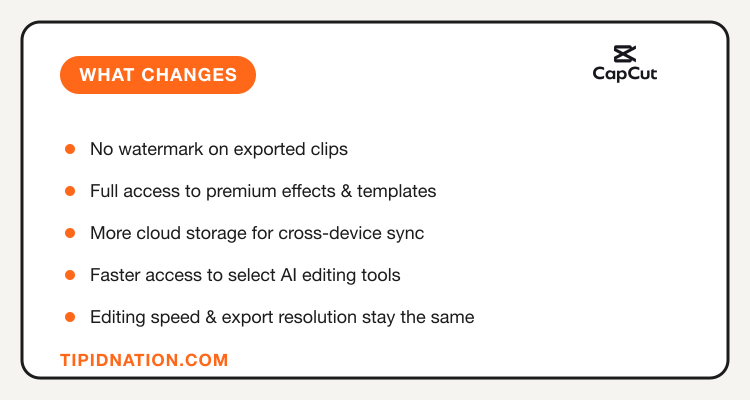
- No watermark on exported clips
- Full access to premium effects and templates
- More cloud storage for cross-device projects
- Faster access to select AI editing tools
- Editing speed and export resolution stay the same as free
That last point matters. CapCut Pro for content creators is not a performance upgrade, the app doesn't render faster or export at a higher resolution just because you're paying. It's a content and polish upgrade, not a speed one, which is an easy thing to assume incorrectly before subscribing.
What Pro adds on top of the free tier you're already using
CapCut Pro vs Free: Side-by-Side
| Feature | Free | Pro |
|---|---|---|
| Export Watermark | Yes, small logo on export | None |
| Effects & Templates | Partial library | Full library |
| Cloud Storage | Limited | Expanded |
| Multi-Device Sync | Basic | Full project sync |
| Cost | ₱0 | Monthly or annual subscription |
CapCut Pro bills monthly, annually, or at a reduced rate for verified students, and the annual plan works out to a lower effective monthly cost than paying month to month. Verified CapCut Philippines deals for September 2026 include annual plan discounts and a reduced first-billing-cycle rate for new subscribers, so timing a signup around an active promo is usually the cheaper move.
Billing, Subscription & Cancellation
CapCut Pro activates instantly after payment, there's no waiting period or separate approval step. Subscriptions bill through whichever platform you signed up on, the App Store, Google Play, or CapCut's own web billing, and each one runs its own separate cancellation flow rather than a single unified settings page.
That last detail catches people off guard more than anything else about the subscription. Canceling inside the CapCut app alone doesn't always stop the App Store or Play Store from billing you again the following month, you have to cancel through the same platform you originally paid on. Refunds follow whichever store's own policy applies, while feature and billing disputes tied to a direct web subscription go through CapCut's own support instead.
Who Should Actually Upgrade to Pro
The upgrade makes sense once your content has an audience to protect, not before. If you're still experimenting with formats and posting inconsistently, the watermark and template limits rarely cost you anything real. Once a channel starts growing, those same limits start looking like a rough edge on an otherwise clean brand.
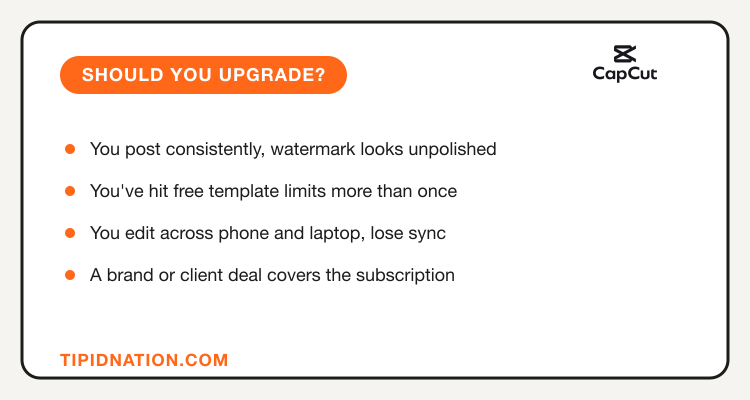
- You post consistently and the watermark now looks unpolished next to competitors
- You've hit the wall on free templates and effects more than once in the same week
- You edit across a phone and a laptop and keep losing sync on drafts
- A brand or client deal is paying you enough that the subscription pays for itself
If none of those apply yet, the free tier is doing its job. The upgrade decision for CapCut should follow your posting habits, not the other way around, subscribing first and hoping it forces consistency rarely works out.
A quick gut-check before you subscribe
Who Should Stick With the Free Version
Casual editors, students trimming clips for group projects, and anyone still figuring out what kind of content they want to make don't need Pro yet. The free tier's caps only start to feel real once volume and consistency show up, and paying a subscription before that point is money spent on a problem you don't have.
A middle option worth knowing about: subscribing for a single month around a launch, event, or campaign, then canceling once the batch of videos is exported. CapCut Pro is billed as a subscription, not a permanent unlock, so this works cleanly for one-off projects that need the polish without an ongoing commitment. Just remember to cancel through the App Store or Play Store directly rather than assuming the in-app toggle handles it.
Freelance video editors sit in a slightly different spot. If you're editing paid work for clients who expect a clean, watermark-free deliverable, the subscription is closer to a business expense than a personal upgrade, and it's usually worth passing that small cost along in your rate rather than absorbing it while editing on the free tier.
Five steps from free tier to watermark-free exports
Your Steps to Upgrade and Save
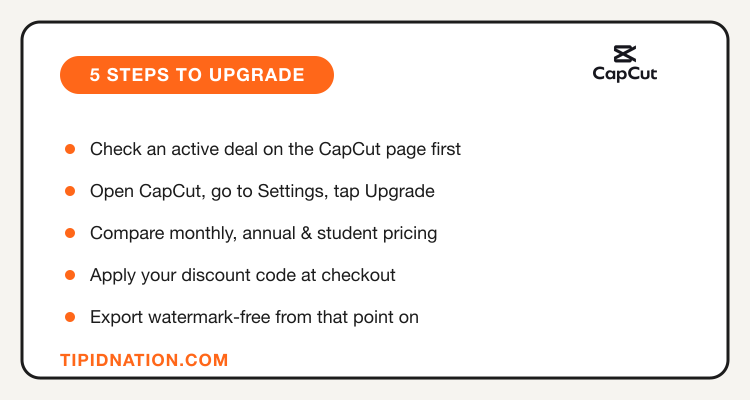
- Check an active deal first. Visit the CapCut Philippines deals page before opening the app to see what's currently running.
- Open CapCut and go to Settings. Tap your profile, then look for the "CapCut Pro" or "Upgrade" option.
- Compare monthly, annual, and student pricing. Annual plans carry a lower effective monthly rate; students should verify eligibility for the reduced rate.
- Apply your discount at checkout. Enter any active code before confirming payment through the App Store, Play Store, or web billing.
- Export watermark-free from that point forward. Existing exports don't retroactively lose the watermark, only new ones after upgrading do.
Bottom Line
CapCut Pro isn't trying to replace the free app, it's polishing the parts that only start to matter once you're posting often enough to care about them. For a casual editor, free covers the job completely. For a creator with a growing audience and a brand look to protect, the watermark removal and full effects library are usually worth the monthly cost, especially timed around a discount.
The smartest move either way is to let your actual posting habits decide, not the subscription page. Verified CapCut Philippines deals for September 2026 make the upgrade cheaper when you do need it, so there's little reason to pay full price on the first month.
See all active CapCut promo codes
Annual plan discounts, first-month pricing, and student rates, updated regularly on the CapCut Philippines deals page.
View CapCut Deals →