What Split Tunneling Actually Does
Running a VPN normally means every app on your device, from your browser to your banking app to your printer's companion software, goes through the encrypted tunnel. That is the point of a VPN most of the time, but it causes real friction for some apps. Local banking apps often flag VPN traffic and block logins outright. A smart TV or printer on the same Wi-Fi network can stop showing up once your laptop's traffic is routed somewhere else entirely. Split tunneling is PIA's fix for that conflict.
Instead of an all-or-nothing choice, split tunneling lets you build a list of apps that either use the VPN tunnel or skip it, while the rest of your traffic follows the opposite rule. It is a PIA VPN configuration feature built into the Windows, macOS, Android, and Linux apps, and setting it up correctly takes about five minutes once you know where to look.
Step 1: Open PIA's Network Settings
Open the PIA app and click the gear or settings icon, then look for the "Network" or "Split Tunnel" tab, depending on your platform. On Windows and Android this sits as its own dedicated section; on macOS it is usually one tab over from the general connection settings. You do not need to be connected to the VPN to configure this, so it is worth setting up before you connect for the first time.
If you do not see a split tunnel option at all, confirm you are running a recent version of the app. PIA rolled the feature out across its major platforms, but an outdated install occasionally hides newer settings panels until you update.
Step 2: Pick Include Mode or Exclude Mode
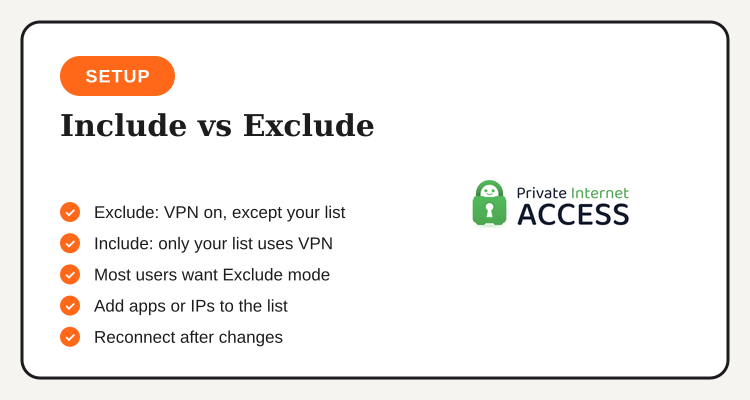
PIA's split tunnel screen gives you two modes, and picking the right one up front saves you from rebuilding your list later. Exclude mode sends everything through the VPN except the apps you add, which suits most people: you connect PIA as usual and just carve out an exception for one banking app or a local delivery app that will not load over VPN. Include mode flips that logic, routing only the apps you list through the tunnel while everything else uses your regular connection, which fits a narrower use case like routing just one browser or one work tool through PIA while leaving the rest of your device untouched.
Step 3: Add Your Apps or IP Addresses to the List
With a mode selected, add the specific apps you want treated differently. On Windows and macOS, PIA scans your installed applications so you can search and tick the ones you want, rather than typing file paths manually. On Android, the list pulls from your installed apps the same way, which makes it simple to exclude a single banking app without touching anything else.
Beyond individual apps, PIA also supports adding specific IP addresses or address ranges to the split tunnel list on desktop. This matters for anyone also trying to reach devices on their home or office network, such as a network printer or a local server, where excluding the entire browser is too broad and excluding just that one IP range is the cleaner fix.
Step 4: Connect and Confirm It Is Actually Working
Connect PIA to a server as you normally would, then open the app you configured and check whether it behaves the way you expected. For an excluded banking app, that means confirming the login page loads without a VPN warning. For an included app under Include mode, a quick way to confirm the tunnel is active is checking that app's visible IP address (many sites and apps will show a different country or region once routed through the VPN) against your other apps, which should still show your real Philippine IP.
If an app you excluded is still getting blocked, close and reopen it after connecting PIA rather than leaving it running from before you made the change, since some apps cache their network state at launch and will not pick up the new routing until restarted.
| Platform | Split Tunnel Support | Notes |
|---|---|---|
| Windows | Full support | App-based and IP-based rules |
| macOS | Full support | App-based and IP-based rules |
| Android | Full support | App-based only |
| iOS | Not supported | Blocked by Apple's VPN framework |
| Router | Not officially supported | Needs third-party firmware policy routing |
Check Current PIA VPN Plan Deals
Multi-year plan discounts for Private Internet Access VPN, including current promo codes for Filipino subscribers, are listed on the PIA VPN Philippines deals page.
See PIA VPN Deals →Step 5: Fine-Tune the List as You Go
Split tunneling is not a one-time setup you forget about. As you install new apps or switch banking providers, come back to the same settings screen and add or remove entries as needed. A good habit is reviewing the list every few months, since an old entry for an app you uninstalled does nothing harmful but clutters the list, while a new app that needs an exception will simply route through the default rule until you add it.
If you regularly connect from both home and a coworking space, note that your split tunnel list is a setting on the app itself, not tied to a specific network or server, so it carries over automatically wherever you connect from.
PIA VPN vs. The Alternatives
IP-based split tunneling
Simpler interface
Premium pricing
Smaller server network
PIA stands out among VPN providers for letting you split tunnel by IP address as well as by app, which matters if you work with local network devices alongside your VPN connection. Filipino users who want the simplest possible setup with less configuration overall should compare PIA's long-term pricing against PIA VPN Philippines promo codes and read how it stacks up against other providers before committing to a multi-year plan.
Common Split Tunneling Problems and Fixes
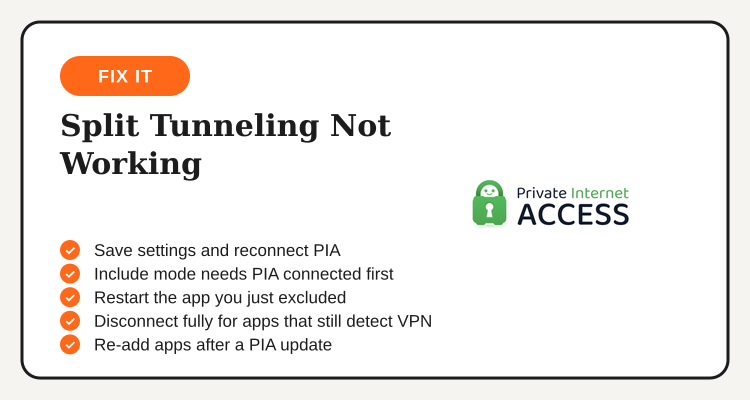
If an excluded app is still being routed through the VPN, double check that you saved the settings and reconnected PIA afterward, since changes to the split tunnel list on some platforms only take effect on the next connection, not instantly while already connected. If an included app shows no internet access at all rather than routing through the VPN, confirm PIA itself is connected to a server first, since Include mode has nothing to route through if the main VPN connection is down.
A banking or government app that still detects a VPN even after being excluded is usually checking your device or network at a level split tunneling cannot reach, in which case fully disconnecting PIA before opening that one app remains the more reliable workaround. And if the split tunnel list appears to reset after an update, that typically means the update changed how the app identifies installed programs internally, so re-adding the affected apps once resolves it going forward.
Build This Into Your Regular VPN Routine
Split tunneling turns PIA from an all-or-nothing switch into a tool you can tailor around the specific apps that actually need VPN protection or actually need to be left alone. Set your mode once, build out the app list for your banking, work, and streaming needs, and revisit it only when you install something new that breaks the pattern. Done right, the PIA VPN split tunneling setup for Philippine users runs quietly in the background without you thinking about it again.
Frequently Asked Questions
Multi-year plan discounts and promo codes for Private Internet Access VPN, updated regularly on TipidNation.
View PIA VPN Deals →