
Why Filipinos Are Switching to Apple Pay
Apple Pay digitizes your existing debit and credit cards so you can pay by tapping your device instead of pulling out plastic. The appeal comes down to four things: speed, security, hygiene, and rewards that carry over.
- Speed. A tap-to-pay transaction takes a few seconds, double-click, authenticate, hold near the terminal, done.
- Security. Your real card number never touches the merchant, your device, or Apple's servers. Every transaction uses a one-time encrypted code instead.
- Contactless. No handing your card to a cashier, no touching a shared keypad to enter a PIN for standard purchases.
- Rewards intact. Cashback, points, and airline miles from your card still post normally, Apple Pay doesn't change how your bank tracks the spend.
Which Philippine Banks Support Apple Pay
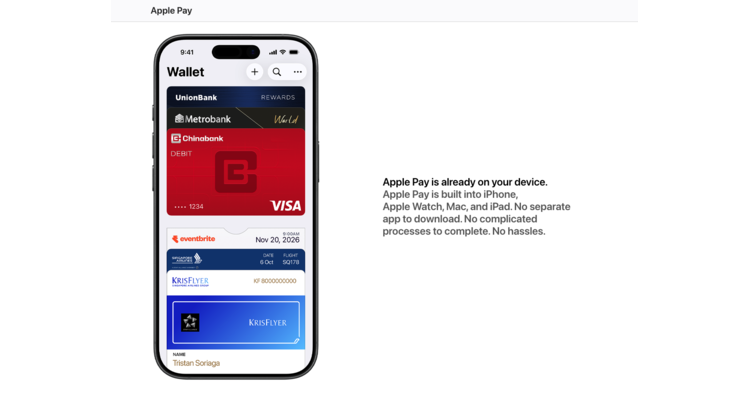
The confirmed participating issuers are China Banking Corporation, GoTyme Bank, Metrobank, and UnionBank. Card coverage differs slightly by bank, UnionBank is the only one supporting both Visa and Mastercard across credit and debit, so check the table below against the card you actually plan to add.
| Bank | Cards Supported |
|---|---|
| China Banking Corporation | Visa credit and debit, Mastercard credit |
| GoTyme Bank Corporation | Visa debit and credit |
| Metropolitan Bank and Trust Company | Visa credit, Mastercard credit and debit |
| Union Bank of the Philippines | Visa and Mastercard credit and debit |
If your primary bank isn't on the list, some Mastercard and Visa cards issued through international programs can still be added if your account supports international Wallet provisioning. Check with your bank directly to confirm eligibility before assuming your card won't work.
Setting Up Apple Pay on iPhone
Adding a card takes under two minutes:
- Open the Wallet app. It comes pre-installed on every iPhone, find it on your home screen.
- Tap the "+" icon in the top-right corner and select Debit or Credit Card.
- Scan your card. Frame your physical card in the camera to auto-capture the number and expiry, hold an NFC-enabled card against the back of the phone, or enter the details manually.
- Verify with your bank. You'll get an SMS OTP, an email code, or an approval prompt inside your bank's own app, whichever method your issuer uses.
Setting Up on Apple Watch
Your Apple Watch has its own secure element, so a card added directly to the Watch works independently, useful for a run or gym trip without your phone.
- Open the Apple Watch app on your paired iPhone.
- Go to My Watch → Wallet & Apple Pay.
- Tap Add Card, then either pull in an existing iPhone card or scan a new one.
- Complete the same bank verification step as on iPhone.
Setting Up on iPad or Mac
On iPad, go to Settings → Wallet & Apple Pay → Add Card. On a Mac with Touch ID, go to System Settings → Wallet & Apple Pay → Add Card. Both follow the same scan-and-verify flow as the iPhone setup.
How to Pay in Physical Stores
Look for the Apple Pay logo or the sideways Wi-Fi-style contactless symbol at the terminal, that tells you the store accepts tap-to-pay.
With Face ID (iPhone): Double-click the side button, your default card appears, look at the screen to authenticate, then hold the top edge of the phone near the reader until you feel a light vibration and see the checkmark.
With Touch ID (iPhone): Rest your finger on the home button to authenticate, then hold the phone near the reader until the screen confirms.
With Apple Watch: Double-click the side button, then hold the watch face near the terminal until you feel a pulse and hear the confirmation tone.
How to Pay Online and Inside Apps
Apple Pay skips the usual checkout form, no re-typing your card number, expiry, or billing address every time.
- Select Apple Pay at checkout in a supporting app or on a Safari website.
- Confirm your billing, shipping, and contact details look correct.
- Authenticate: double-click and use Face ID, Touch ID, or your passcode on iPhone/iPad, or confirm via your Mac's Touch ID sensor or a nearby paired iPhone/Watch.
Where You Can Tap and Pay in the Philippines
Apple Pay acceptance is already broad across Metro Manila malls, restaurants, and online checkouts, and it keeps expanding as more terminals get upgraded to contactless. Here's where it's confirmed live right now, grouped by category.
Restaurants and Cafés
Hanamaruken, Jollibee, SaladStop!, Shake Shack, The Matcha Tokyo, The Underbelly, Your Local.
Malls, Supermarkets, and Variety Shops
Ayala Malls, Rustan's, WalterMart Supermarket, Anko, Flying Tiger, Hamleys.
Entertainment
Ayala Malls Cinemas, The Movie Snackbar.
Fashion and Apparel
Abercrombie & Fitch, Bershka, BOSS, Calvin Klein, Gap, Hollister, Lacoste, Ralph Lauren, Tommy Hilfiger, Zara, Bally, Coach.
Footwear and Athleisure
Foot Locker, HOKA, JD Sports, New Balance.
Electronics
Abenson, Beyond the Box, Digimap, Digital Walker, Electroworld, Open_source by Beyond the Box, Power Mac Center, The Loop.
Jewelry
Charriol.
Travel and Luggage
Samsonite.
Telecommunications
Globe, Smart.
Online Merchants
Apple Pay checkout is also live on Banana Republic, Gap, Lacoste, Old Navy, JD Sports, Payless, Beauty Bar, LUSH, Jollibee, foodpanda, Rustan's, and Shopee, so you can skip typing your card details on both the app and the website version of most of these.
This list reflects merchants live at time of writing and grows regularly. In-store, the fastest way to confirm is looking for the Apple Pay logo or the contactless symbol at the register, both mean the terminal is ready.
How Apple Pay Security Actually Works
The security model is the main reason Apple Pay is worth switching to, not just the convenience.
- Tokenization. Your real card number is replaced by an encrypted Device Account Number, stored only inside your device's Secure Element chip. Apple never sees or stores your actual card number.
- Dynamic codes. Every transaction generates a unique one-time security code instead of reusing the static 3-digit CVV printed on your card.
- Biometric lock. No payment goes through without Face ID, Touch ID, or your device passcode, so a stolen phone alone isn't enough to spend your money.
- Find My integration. Lose your device, and Lost Mode instantly suspends Apple Pay on it, no need to cancel your actual bank card while you locate it.
Getting the Most Out of Apple Pay
Add more than one card if your bank rewards vary by category, a cashback card for groceries, a points card for travel, and switch your default card in Wallet depending on what you're buying. Since Apple Pay doesn't change your rewards structure, the smartest move is layering it on top of the card that already earns the most for that purchase, then stacking it with any active platform promo, like a GCash voucher or a bank-specific discount, at checkout.
If your bank isn't supported yet, that's usually a matter of time rather than a dead end, Apple Pay's bank network in the Philippines is still expanding. Checking your bank's app once a month is the easiest way to catch support the moment it lands.
Frequently Asked Questions
Active promo codes and card discounts for Apple products, updated regularly on TipidNation.
View Apple Deals →